
I spent some time today going through the following ESRI Tutorial: Fix connectivity errors in a utility network (learn.arcgis.com). I think the ESRI tutorials are a fantastic resource. They hit on so many topics that I didn’t have the opportunity to study in my undergrad. Topics pertaining to the Utility Network fall in that category. Now, I know what you are thinking, “What kind of person likes to dig into such things in their free time?” The short answer is: me! 🙂
Making sure that your network is clean of errors requires methodical attention to detail. In fact, I think that summarizes all of GIS.

In my experience, it is incredibly difficult to package both the “big picture” and the myriad of little steps that are required to get there (that “methodical attention to detail” that I was referring to) in one tutorial. In other words, to miss the forest for the trees. Often times there is either too much text that bores us to the point that we ignore the finer details or there is not enough in the tutorial for us to make sense because we lack the context/experience.

Have you ever hit a dead-end in a tutorial just because there was one very small, but crucial step that wasn’t mentioned? Of course, you can eventually find your way, but you waste needless time. On the other hand, another thing that has always bothered me about many tutorials is that there is sometimes too much of “click here and here” but not enough about “why.”
Why do I select that? Why do I enter that number? What is that parameter anyways?
I’ve found it works best for me when I quickly skim through the entire tutorial to get the main idea of what is going on and what they are trying to show me. Next, I still don’t begin, but rather skim though again slightly slower to pick out the key concepts that I don’t understand or could use refreshing on. For example, for this tutorial:
- What does each of those snapping options mean? (see screenshot below).
- What do those other symbols for dirty areas mean? There’s an awfully long list (see screenshot below) Saddles? Sleeves? Weld?
The following are my notes about the tutorial. They follow the actual tutorial very closely, but I find that these types of notes help solidify my understanding and give me a personal record of what I have learned. I encourage you to pay close attention. Try to spot an obvious mistake in the first section. I left that in because it serves a a great reminder too. More importantly, I hope these notes can take a bit of a twist on the traditional tutorial and encourage deeper thinking.
Add Features in a Water Utility Network:
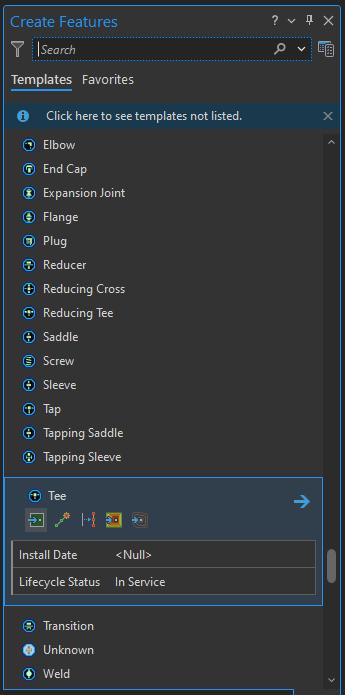
Where can you go to learn more about the features in a Utility Network?
Challenge:
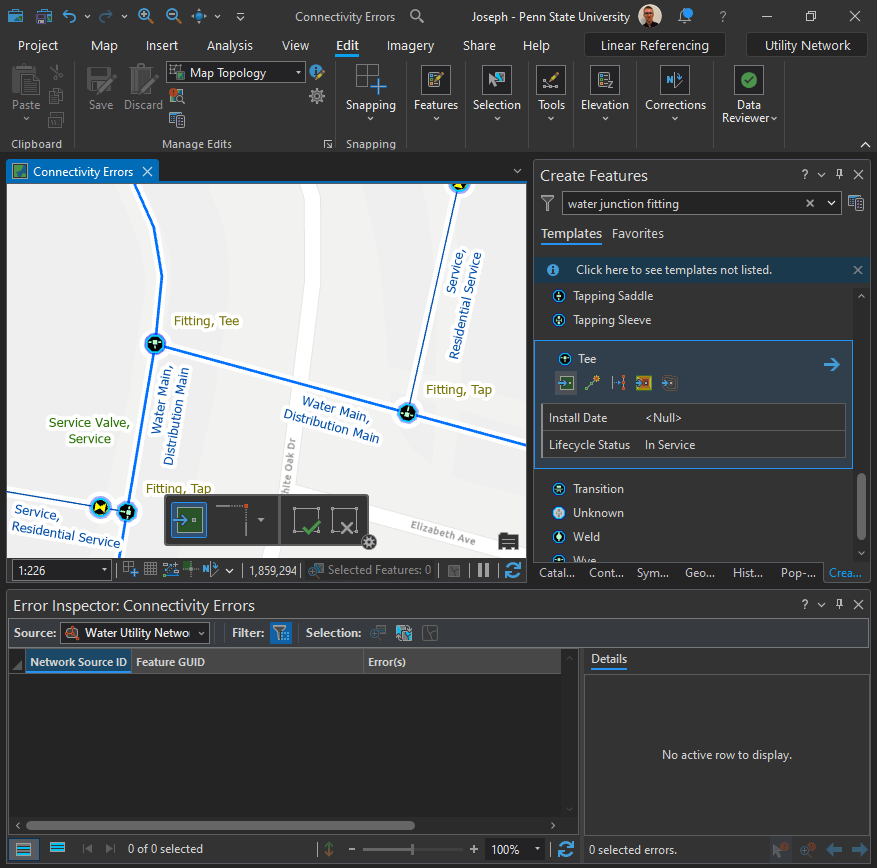
Can you spot where a feature needs to be added?
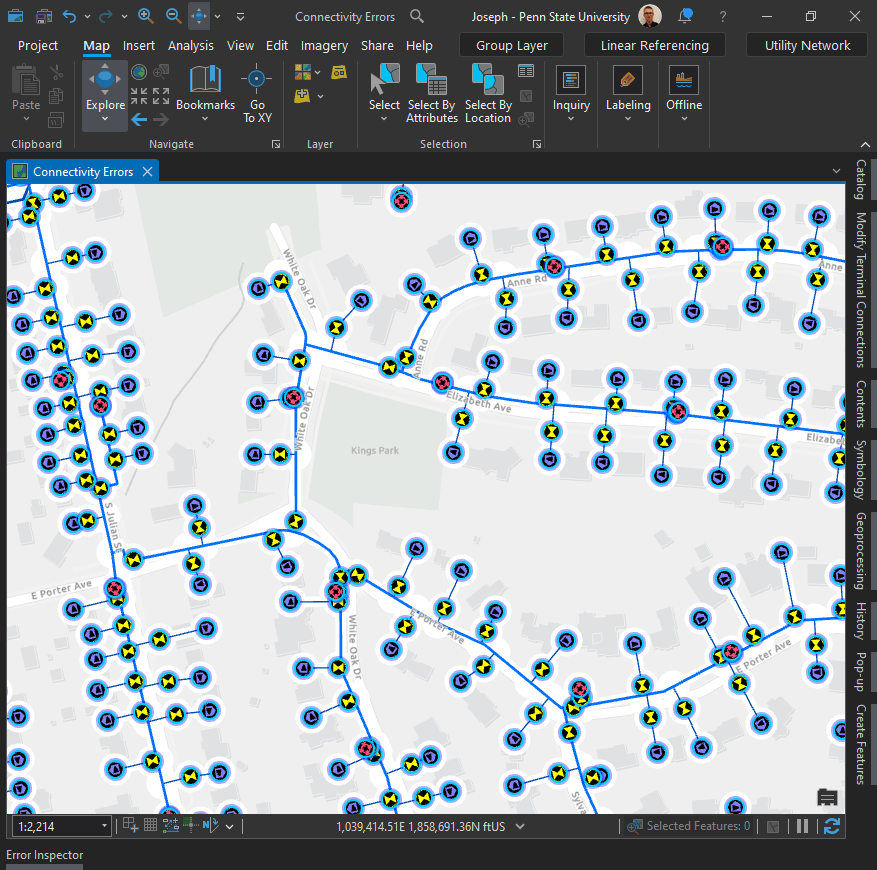
First of all, just because you can’t see it doesn’t mean it’s not there.
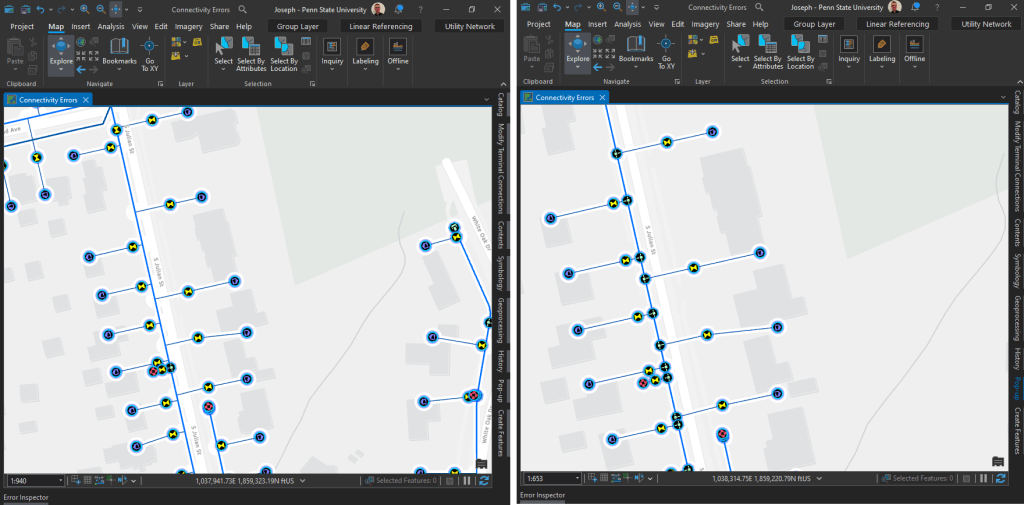
Right: Zoomed in, now the “Fittng, Tee” junctions are visible.
Take a look at the first screenshot again. Could you spot it? Probably not and that’s my point. This proves why rules are so important. Otherwise, you would be left looking for a needle in a hay stack. Or even worse, “potentially missing needles in a hay stack.” For more, check out the following tutorial: Configure rules for a utility network.
Editing:
Before you begin editing in ArcGIS Pro, there is one very important thing to keep in mind:
“You can’t undo edits after you save, and if you choose to discard edits, you’ll lose all edits since the last time you saved, so you should be strategic about when you choose to save your edits.”
Snapping:
First, enable Snapping in the Edit tab. Make sure that the first four snapping options are turned on.
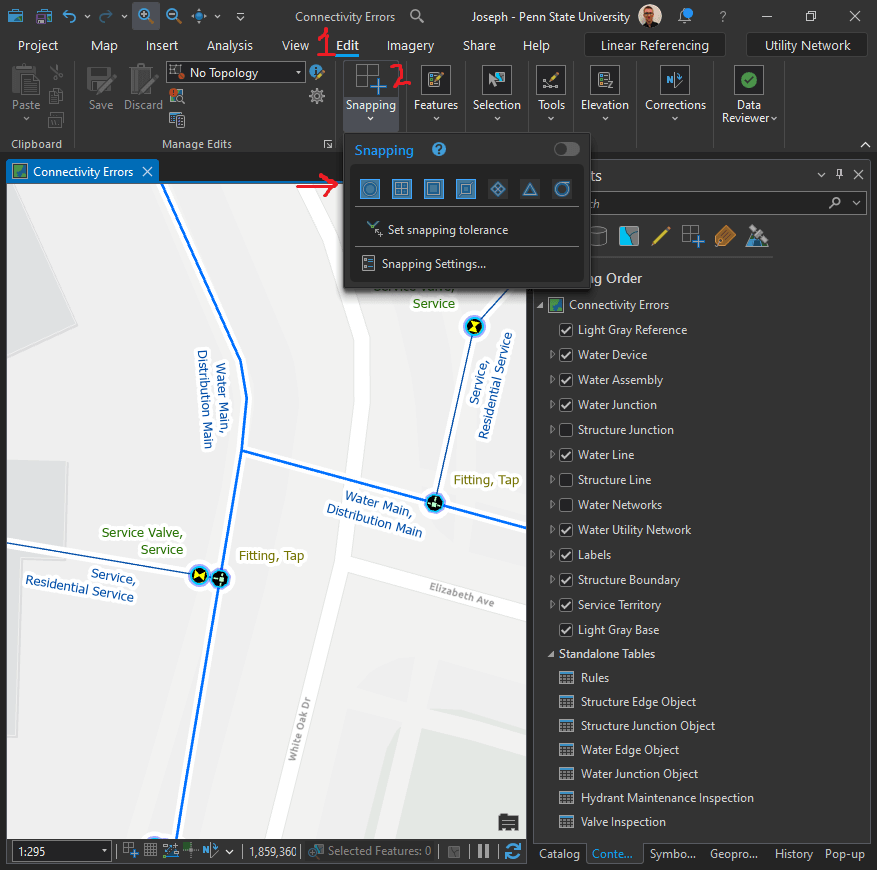

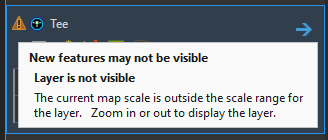
What is the triangle warning about?
What are “Dirty Areas?”
Below in the Contents Pane, you can see a screenshot of the dirty areas for the Water Utility Network. The first time I heard of this I thought “dirty” meant “mistake.” Our mothers have instilled in us that “dirty” is never a good thing! But what do those all those blue and red symbols really mean?
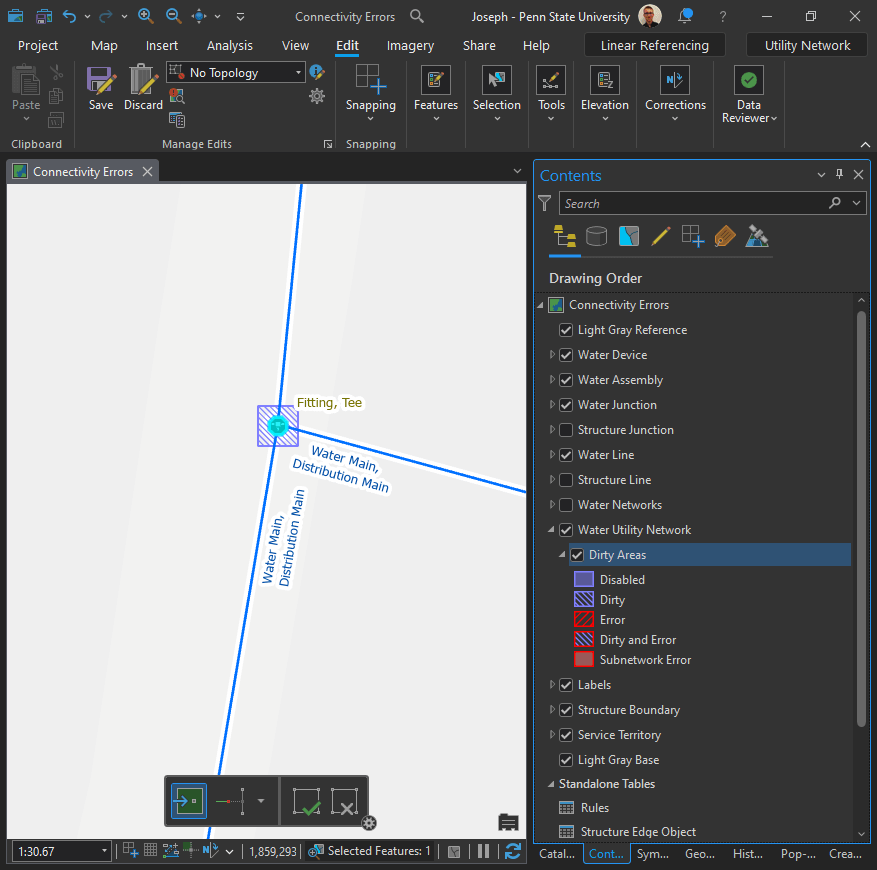
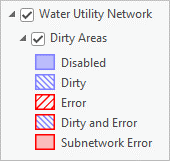
Actually, they are simpler than you might think.
- “Dirty” indicates that an edit has not yet been validated.
- “Error” indicates that an edit has been validated but has returned an error.
- “Dirty and Error” indicate that a feature that had an error has been edited and now needs to be validated again.
What about “Subnetwork Error?” I’m glad you asked! 🙂
First I found, Utility Network Error Management: Water Subnetwork Errors (esri.com), but upon taking a closer look at what a subnetwork really is: Analysis and Tracing with ArcGIS Utility Network. It has many useful tutorials including:
The tutorial states:
What are subnetworks and why are they useful? If you’ve worked with geospatial data before, you are familiar with the different methods used to organize and analyze data. ArcGIS Utility Network adds an additional dimension to GIS by allowing you to analyze your data using the connectivity between features by performing traces. Subnetworks are well-defined areas of connectivity in your database that either originate or terminate to a known set of features known as subnetworks controllers. Subnetworks are used to model the connectivity and flow of real-world systems, like circuits and pressure zones, and because they exist as features in your database they can be used to organize, manage, and analyze your data.
That’s a start, I supposed, but we actually need to work with one in order to gain any real understanding.
Validate Current Extent:
Be aware that “current extent” is the default.
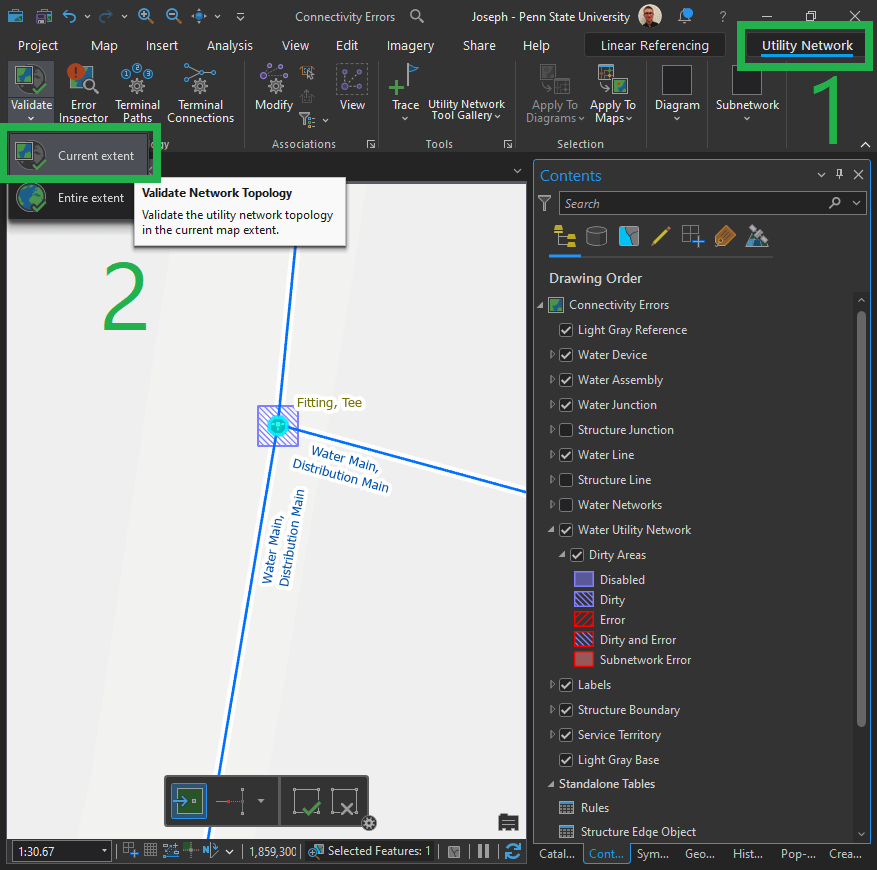
“By default, the Validate command only validates dirty areas within the current map extent.”
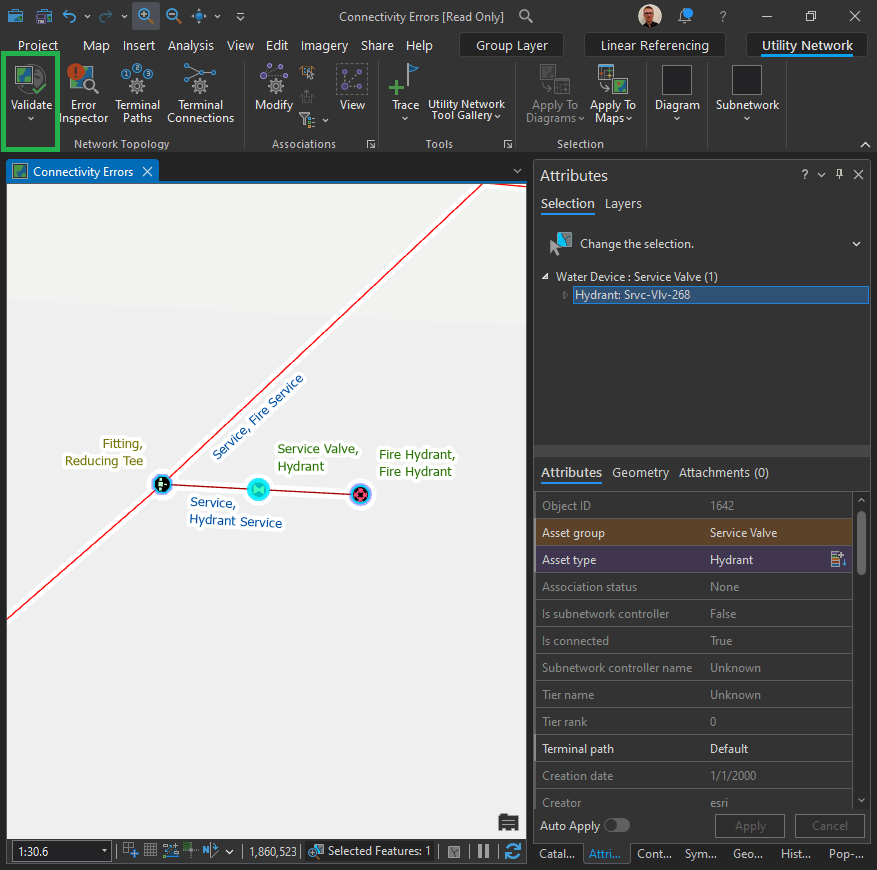
Validate Success:
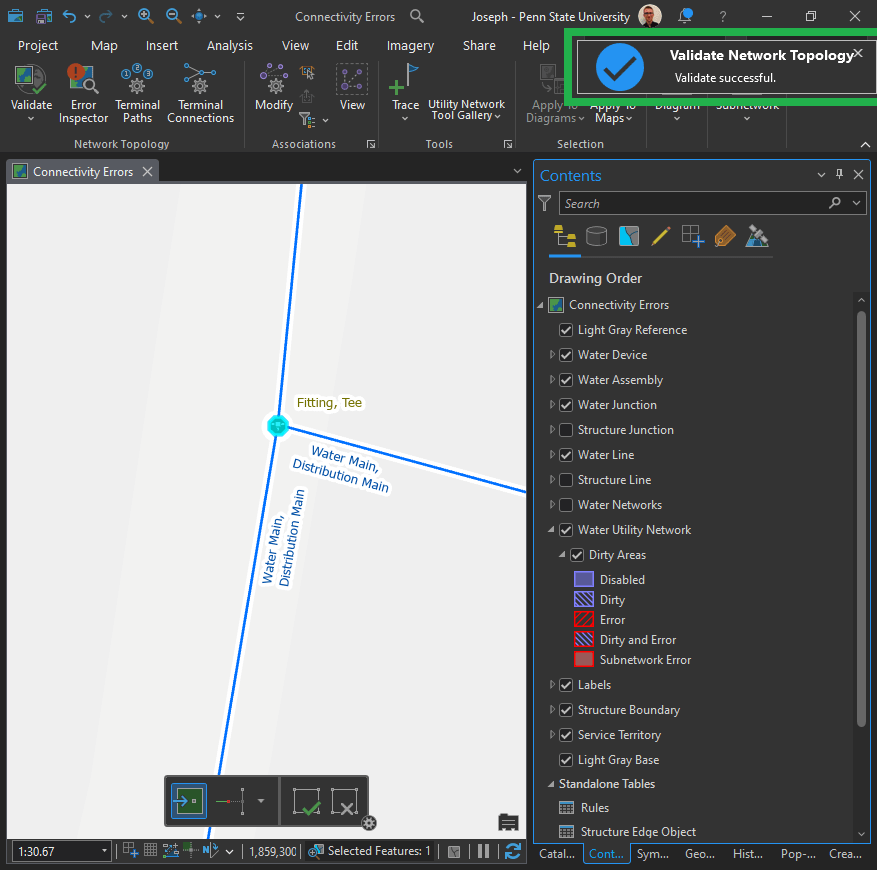
So here, can you spot what’s wrong with the image below?
Fix connectivity errors for a hydrant service line
The features in a utility network topology are called junctions and edges. They are typically point (junction) and line (edge) features on the map.
Junction-edge errors are created whenever the system can’t connect a point (junction) to a line (edge), so they often occur when other errors prevent features from connecting. When you see this error, focus on correcting other errors first since this may also resolve the junction-edge error.
Note: To learn how to resolve this error by changing a configuration, see Allow a junction-edge connection in the tutorial Configure rules for a utility network.
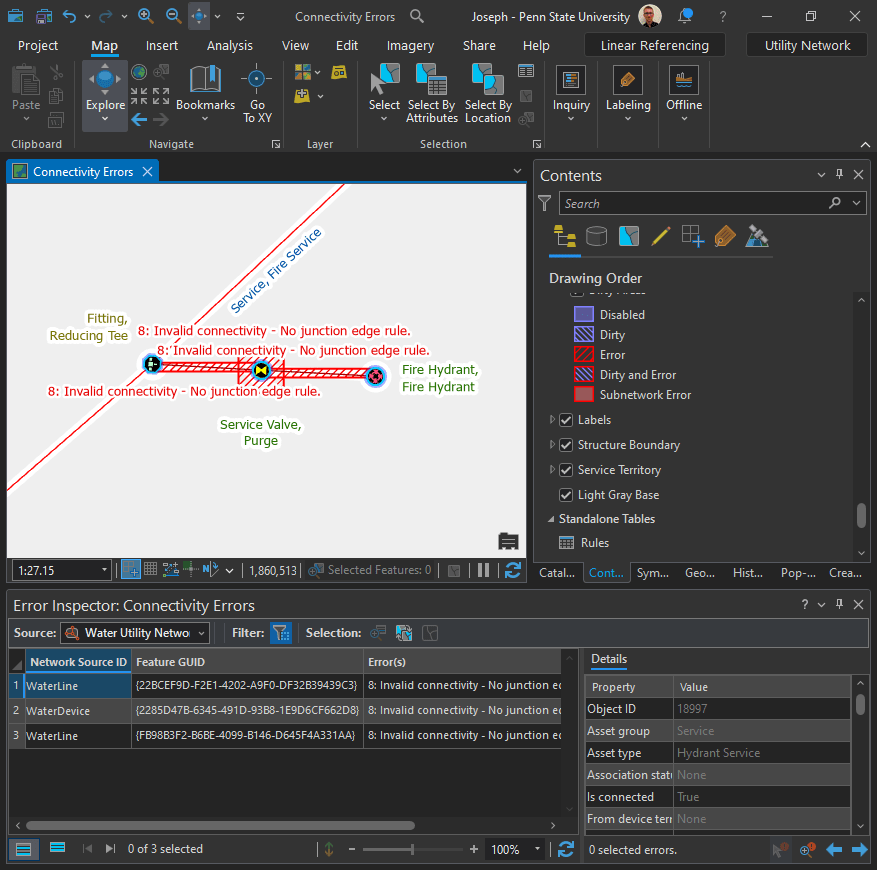
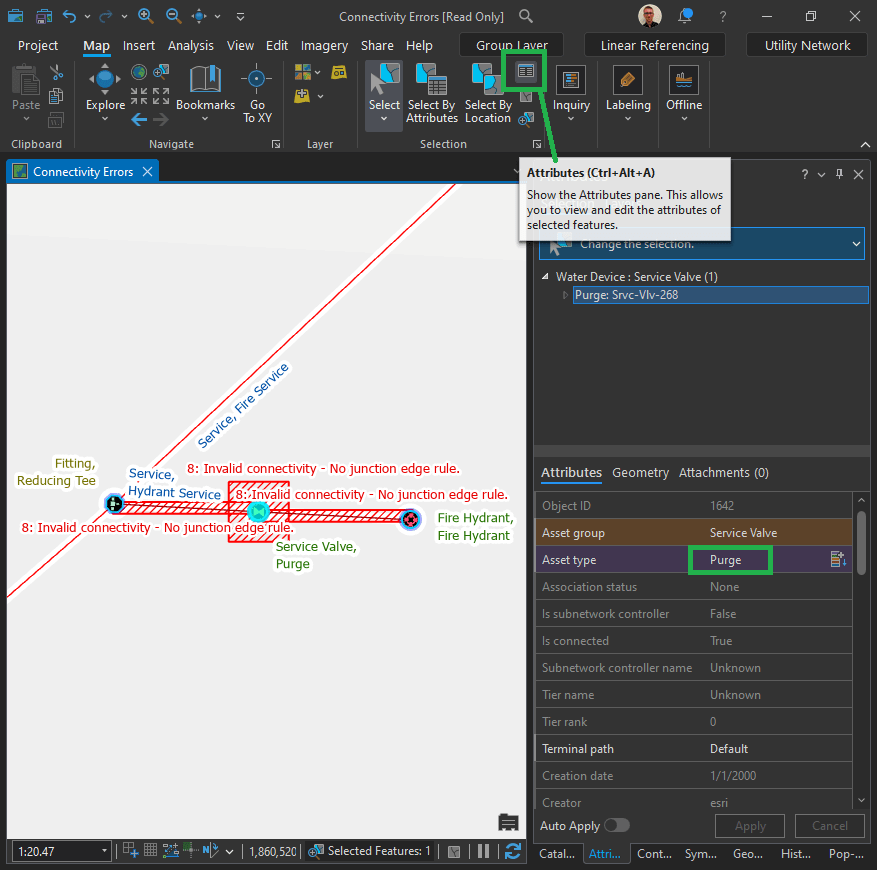
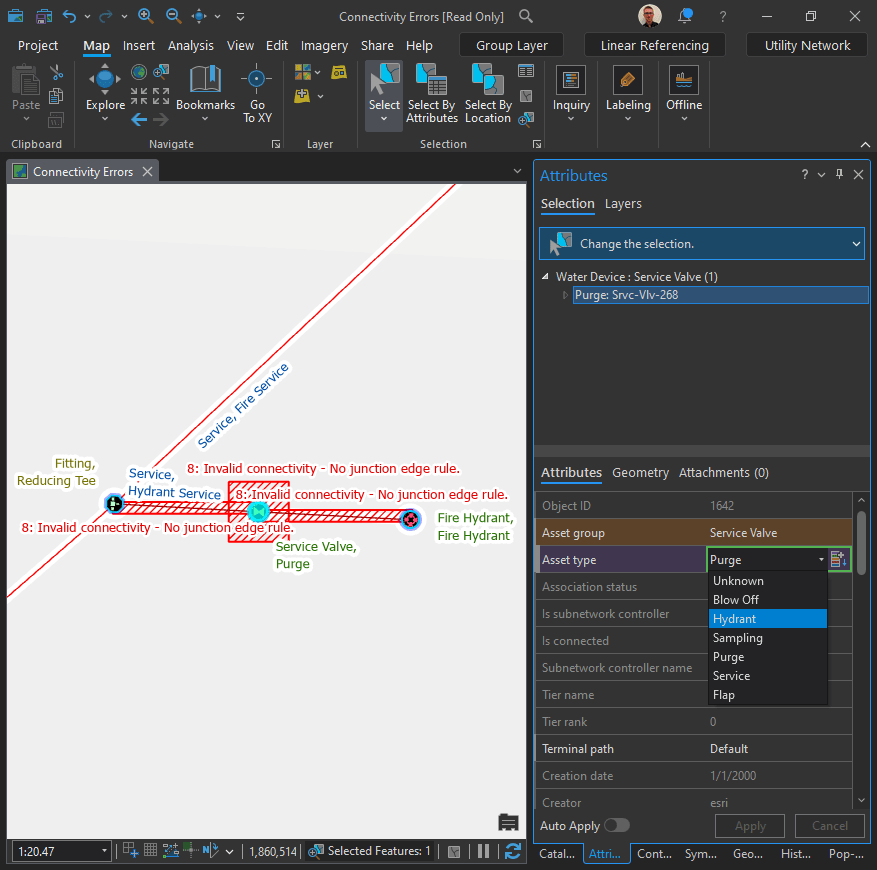
Notice anything different?
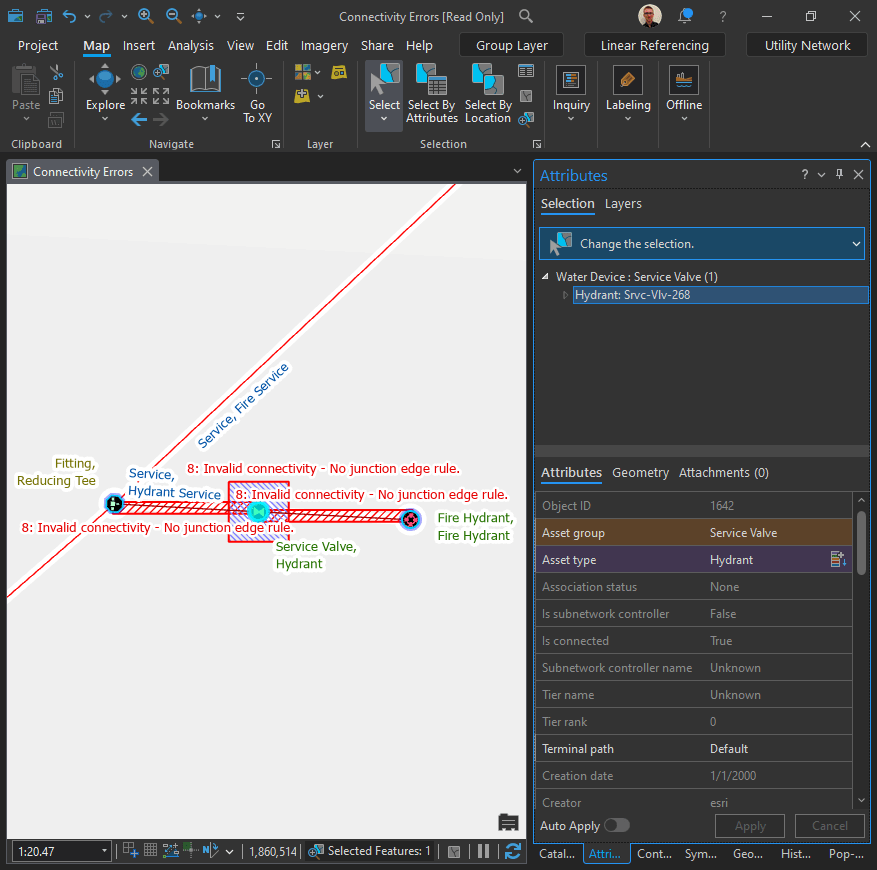
Now it is “Dirty and Error”
Fix ambiguous connectivity errors
Terminals dictate the direction in which the water will flow through pumps and other devices. It is important that all of the pumps flow in the same direction to avoid creating loops in the station.
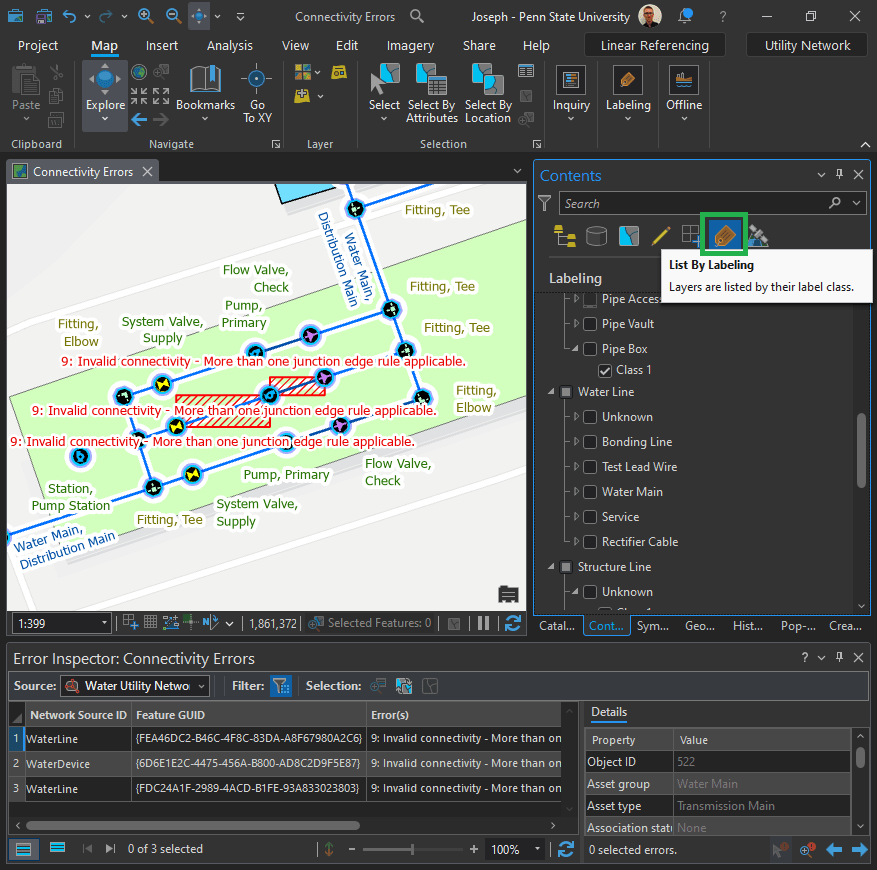
Let’s zoom in a bit. Can you see a problem?

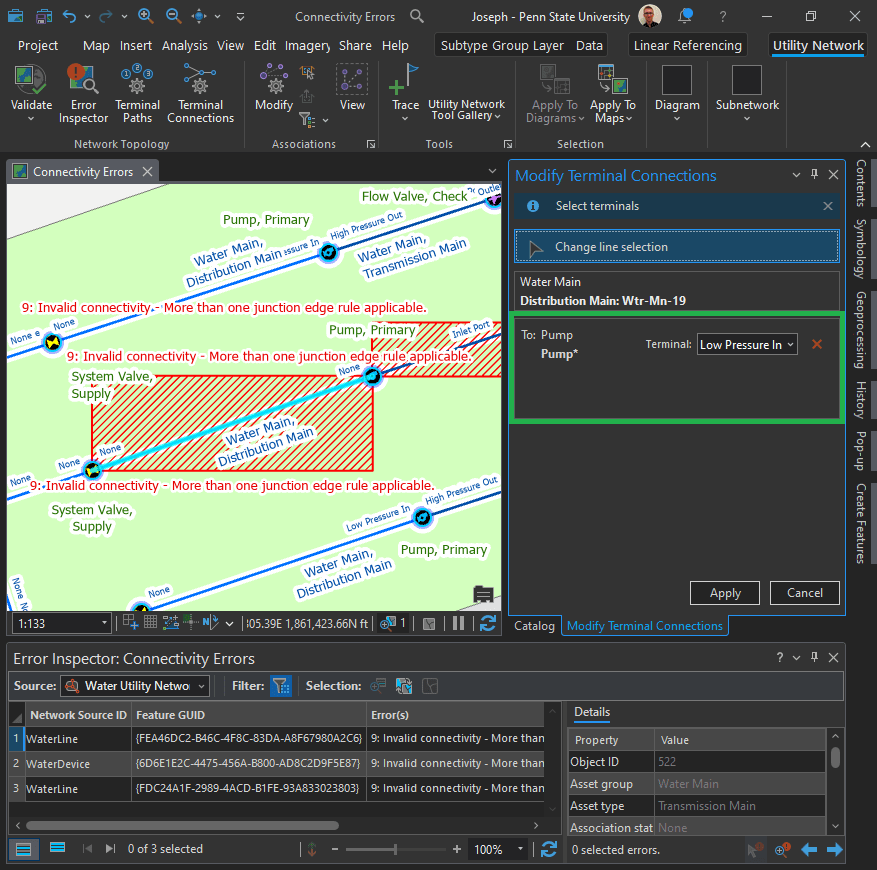
The terminal connections for the middle pump are not fully defined. This creates an “ambiguous connectivity error.” But how do we fix it?
Click on the Utility Network tab in the top menu ribbon. In the Network Topology group, click Terminal Connections.


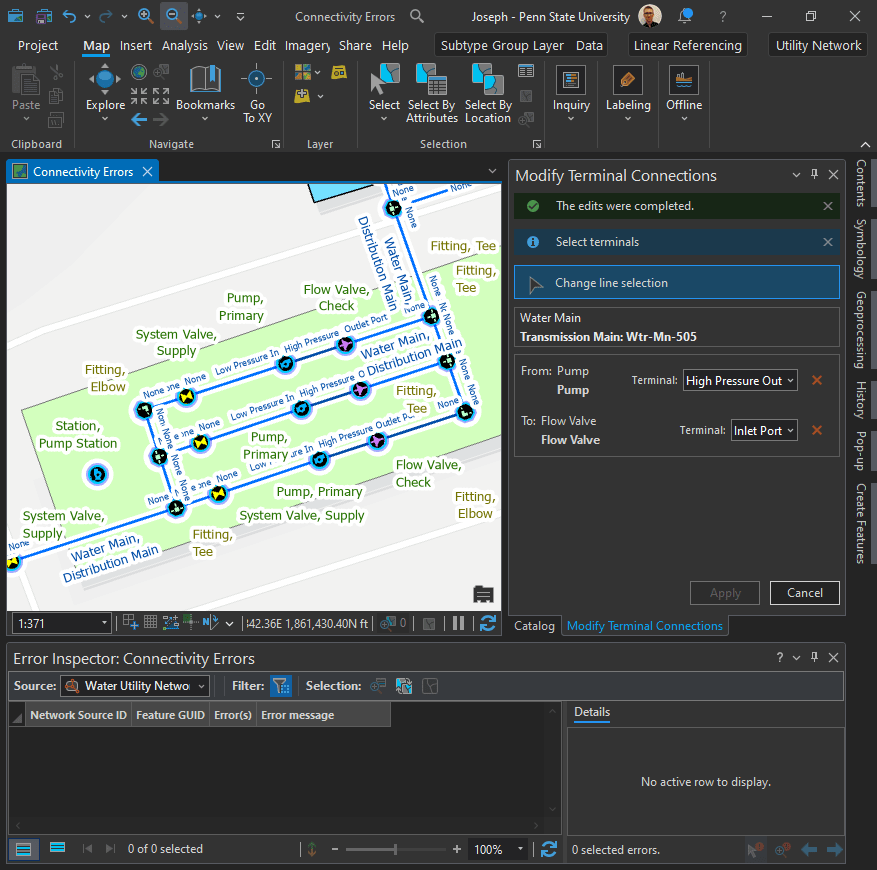
Happy?
Not really. I would like to learn more about each part of the diagram and have a deeper understanding of what each mean.
Fix terminal connections after editing a feature:
When you connect to a feature that has terminals, you need to specify which terminal the connection uses. When the specified terminal is not valid for the connected features, the system will create error 36: Line feature has invalid terminal, also known as an “invalid terminal connection error.“
 Joseph Kempf
Leave a comment